Updating your identity provider certificate
Your SSO identity providers are designed to exchange credentials securely. But that trust depends on a third‑party certificate authority verifying that each organization is genuinely who it claims to be.
Certificates can eventually be compromised given enough time and computational power, so their protection window is finite. Once a certificate reaches its expiration date, replace the certificate to maintain security.
 Roles
Roles
|
Access Unify | Lifecycle Administrator
|
A user who can log in to the main Access Unify | Lifecycle Application with administrative rights. |
|
Identity Provider
|
Your computer system that is responsible for authenticating users against your company’s directory of users. |
|
Identity Provider Administrator
|
Your company’s administrator from your IT department who will notify you of the need to update your certificate, and who will provide you with the new certificate when it is ready. |
Best Practices
-
Make sure you understand what identity provider’s features your company has available to you. Do they allow for rollover with two certificates at once?
-
When does the new certificate start to take effect? Is there a window to time where you could run the system both on the old and the new certificate? Or do you need to switch over the certificate at the exact same time?
-
How will they be forwarding the new key to you? Will it be by XML file? By PEG file?
-
We recommend that you arrange the manual switchover earlier on in the change window, so that you have time to address any issues while the change window is still in place with subsequent calls.
-
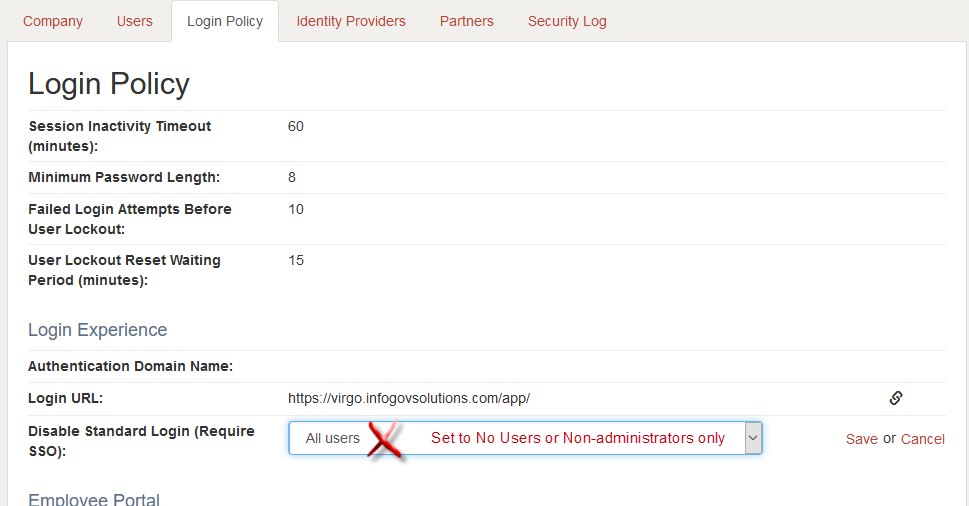
Ensure your login policy setting Disable Standard Login (Require SSO) has NOT been set to All Users. You will need to be able to log in manually with your credentials as backup.
-
Ensure you understand which identity provider certificate settings need updating. Will it be for the certificate for the main Access Unify | Lifecycle application? Or will the certificate be for the Access Unify | Lifecycle Employee Portal? Or both? If you are not sure, ask your identity provider administrator.

Updating your identity provider certificate
-
Request the new public key for the new certificate from your organization’s Identity Provider. If you received an XML file, see Extracting the certificate from an XML file. If you received a PGP file, see Extracting the certificate from a PGP file.
-
During the window of time your new certificate is available for use, but the old one is not yet retired, arrange for an off-hours time to test Access Unify | Lifecycle and Access Unify | Lifecycle Employee portal access. If you do not have an end user account, ask an end user for assistance.
- Log in to Access Unify | Lifecycle with administrator privileges.
- Click on the Admin link and then click on the Identity Providers tab.
-
Select the identity provider to update and click View Detail.
-
In the IdP Certificate field, replace the old certificate information with the new certificate information. Include the Begin Certificate and End Certificate statements.

Ensure there are no carriage returns or line breaks before or after the new certificate information.
-
Click Save.
-
Ask end users to test their access to the Access Unify | Lifecycle and/or Employee Portal systems with the new certificate saved in place to confirm the new certificate authenticates.
Extracting the certificate from an XML file
When you receive the new certificate from your provider in step 1, the identify provider may send an XML file. Some XML files have more than one key. The specific key you need will have a KeyDescriptor use= value of signing.
-
Open the XML file in Notepad.
-
Copy the certificate information for signing.
In Access Unify | Lifecycle, your existing certificate starts and ends with this formatting:
The new certificate must have this same formatting when you replace the old one in your Identity Provider settings.
-
Apply this formatting automatically on this website.
-
In the X.509 cert field, paste the certificate information for signing from your XML file.
-
Click the FORMAT X.509 CERTIFICATE button.
-
In the X.509 cert with header section, click the Copy button.
-
Continue to step 2 for Updating your identity provider certificate.
Extracting the certificate from a PGP file
The certificate will already be in the correct format.
-
Continue to step 2 for Updating your identity provider certificate.